SLIDD AI Download: How to Get It on iPhone
SLIDD AI Download: How to Get the AI Dating Keyboard on iPhone
Open the App Store, search SLIDD AI, tap Get — that's the short version of this guide. A full SLIDD AI download and keyboard setup takes about three minutes start to finish, and by the end of it you'll have a working AI keyboard that reads your screen and writes dating replies in real time, live inside Hinge, Tinder, Instagram, and every other app where you text.
Key Takeaways
- SLIDD AI is an iOS-only AI keyboard that reads your screen and writes dating replies in real time — no screenshots, no app-switching, one tap.
- Download SLIDD AI free from the App Store (US & Canada, 18+ rating), get 3 days of unlimited access, then choose weekly ($6.99), monthly ($19.99), or annual ($99.99) plans.
- Adding SLIDD to your iOS keyboard takes about 2 minutes: Settings > Keyboard > Add New Keyboard > SLIDD AI, then enable Full Access for screen reading.
- The app works inside Hinge, Tinder, Bumble, Instagram DMs/Stories, WhatsApp, iMessage, Snapchat, and any app with a text input field.
- After download and setup, tap Reply in any dating app, choose your tone, and SLIDD generates a contextual reply instantly.
Contents
- What Is a SLIDD AI Download and How Do You Get It?
- Why Download SLIDD AI?
- How Do You Add SLIDD AI to Your iPhone Keyboard?
- Does SLIDD AI Work Immediately After Download, or Do You Need to Set It Up?
- Download SLIDD AI Free
- What's Included in the Free 3-Day Trial When You Download?
- Is a SLIDD AI Download Really Free to Try?
- How Much Does SLIDD AI Cost After the Free Trial?
- Can You Download SLIDD AI on Android?
- FAQ
What Is a SLIDD AI Download and How Do You Get It?
SLIDD AI is an AI keyboard for iPhone that reads whatever is on your screen — her message, her photo, her Instagram Story — and writes a reply in your chosen tone. You download it free from the App Store, add it as a keyboard in iOS Settings, and it works inside Hinge, Tinder, Bumble, and any other app the moment it's enabled.
It isn't a separate app you open, screenshot into, and copy replies out of. That's what SLIDD AI actually does differently from every other tool in this category — it lives where the conversation already is.
The download itself is a normal, free App Store install. Everything past that — turning it into a working keyboard — is a Settings toggle away, covered in detail below.
Why Download SLIDD AI?
Every competing dating reply app runs the same broken workflow: screenshot her message, leave the dating app, open the competitor's app, upload the screenshot, wait, copy the reply, switch back, paste it. SLIDD skips all of that because the keyboard is already inside the app you're texting from.
That's eight friction points collapsed into one tap. By the time a guy finishes uploading a screenshot to a competitor app, the moment that made the reply worth sending has usually passed. SLIDD reads the screen the instant you tap Reply, which is the exact workflow flaw screenshot-based tools were never built to fix.
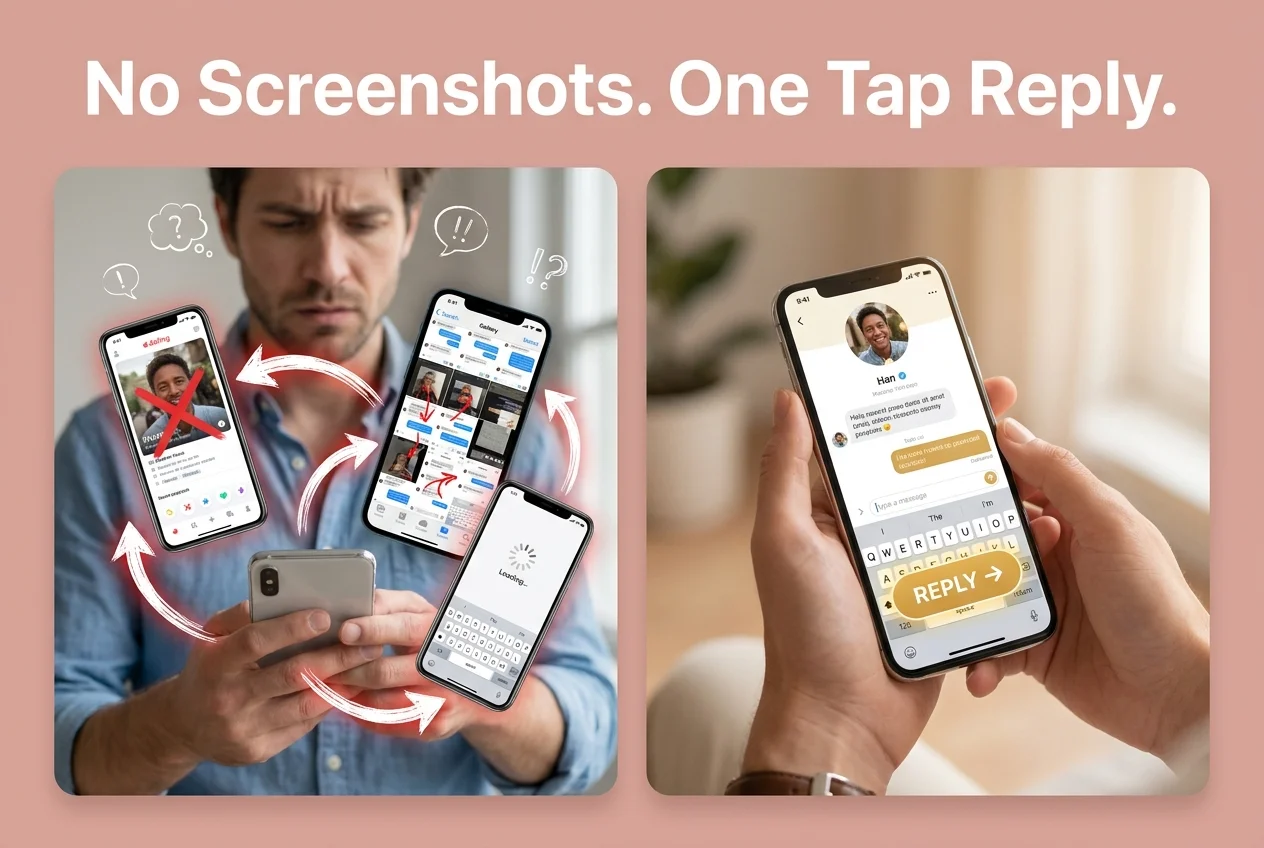 Left: the screenshot shuffle every competitor runs. Right: SLIDD, already inside the conversation.
| Capability | SLIDD AI | Rizz AI | Keys AI | YourMove AI |
|---|---|---|---|---|
| Real-time screen reading | Yes | No | No | No |
| Works inside the dating app (no exit) | Yes | No | No | No |
| One-tap reply, no screenshot upload | Yes | No | No | No |
| Works on Instagram Stories | Yes | No | No | No |
| Five tone presets + custom | Yes | Limited | Limited | Limited |
The short version: if you've ever let a girl's Instagram Story expire because you couldn't think of a reply in time, that's the exact gap SLIDD's download closes.
How Do You Add SLIDD AI to Your iPhone Keyboard?
Download SLIDD AI from the App Store, then activate it as a system keyboard in iOS Settings under Keyboards, and grant Full Access so it can read your screen. The whole sequence is two short steps and takes under two minutes.
Step 1: Download and Sign Up
- Open the App Store on your iPhone
- Search "SLIDD AI" (full listing name: SLIDD AI — Wingman Keyboard)
- Tap Get — it's a free download, rated 18+, available on the US and Canada App Store
- Open the app once it installs and create an account
- Your 3-day unlimited trial clock starts the moment you sign up, not the moment you first use the keyboard
Step 2: Activate the Keyboard in iOS Settings
- Open Settings on your iPhone
- Go to General > Keyboard > Keyboards
- Tap Add New Keyboard and select SLIDD AI
- Tap SLIDD AI again in the keyboard list and toggle on Allow Full Access
- Confirm the permission dialog — this is what lets SLIDD read the active screen via iOS's screen broadcast system
Full Access sounds bigger than it is. It's the same permission category as any keyboard that offers predictive text or GIF search, and it's what SLIDD needs to see the message or photo you're replying to. Nothing is stored or sent anywhere once the reply is generated.
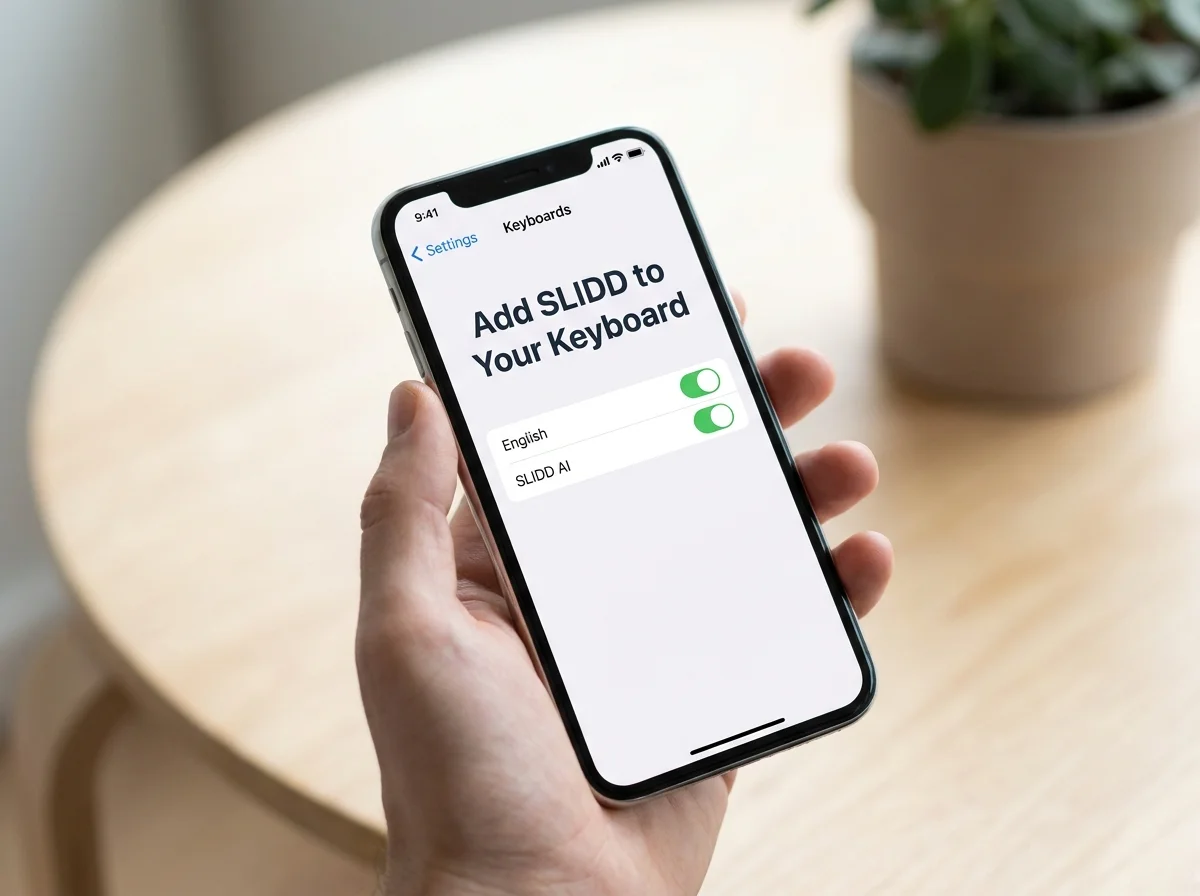 Adding SLIDD as a keyboard takes one visit to this screen.
Does SLIDD AI Work Immediately After Download, or Do You Need to Set It Up?
SLIDD works immediately once the keyboard is added and Full Access is enabled — there's no additional configuration, tone calibration, or account setup screen standing between download and your first generated reply.
Open Hinge, Tinder, or Instagram, tap into any message thread, and switch keyboards the same way you'd switch to an emoji keyboard. That's the entire learning curve.
From there:
- Tap the text field in the conversation
- Switch to the SLIDD keyboard
- Tap Reply
- Pick a tone — Flirty, Bold, Witty, Sincere, or Casual
- SLIDD drops a complete reply into the text field, ready to send
There's no draft to edit unless you want to. The reply that lands in the field is meant to be sent as-is, which is the same three-stage engine doing the reading, writing, and inserting behind the scenes.
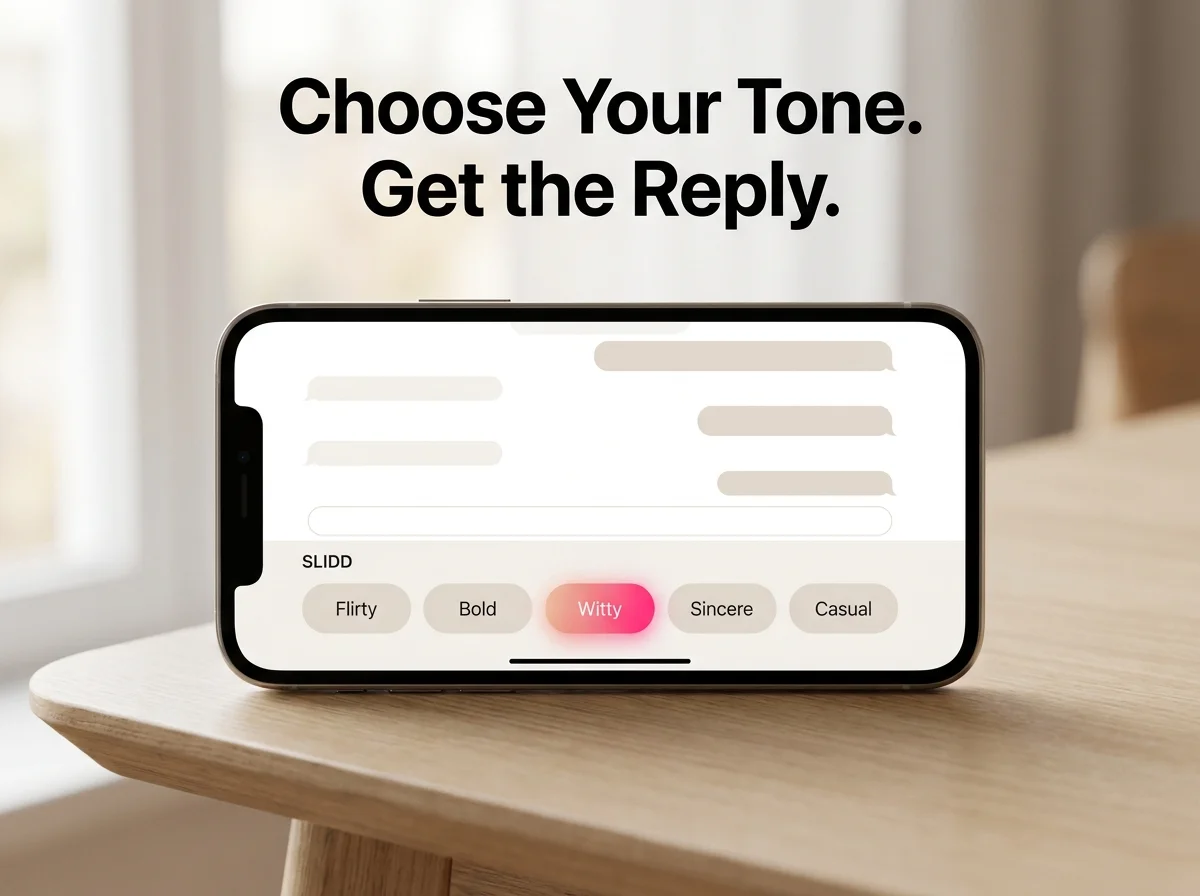 Five tones, one tap — the whole point of the download.
Download SLIDD AI Free
Everything above — the App Store install, the keyboard toggle, the tone picker — adds up to one decision: whether the download is worth three minutes of setup. For a keyboard that's already inside the conversation the next time she messages, it usually is.
What's Included in the Free 3-Day Trial When You Download?
The 3-day trial that starts at signup unlocks everything: unlimited replies, all five tones, the custom tone builder, and full cross-app support across Hinge, Tinder, Bumble, Instagram, WhatsApp, and iMessage — no payment method required to activate it.
This is different from how most subscription apps handle trials. Instead of gating features until you pay, SLIDD gives the full product upfront so you can feel what one good reply does to a real conversation before any money changes hands.
The 3 days are calibrated to cover a realistic match arc — opener, mid-conversation, asking her out — not just a single test message.
Is a SLIDD AI Download Really Free to Try?
Yes. The SLIDD AI download itself costs nothing, and the 3-day trial afterward is fully unlimited with no card required at signup. Pricing only applies once the trial window closes and you decide to keep using it.
Common mistake: guys assume "free trial" means a locked demo with a few sample replies. SLIDD's trial is the entire paid product, unrestricted, for three full days.
If the trial ends and you haven't subscribed, SLIDD doesn't disappear — it drops to a free tier with a daily reply limit and two of the five tones unlocked, so the keyboard stays usable while you decide.
How Much Does SLIDD AI Cost After the Free Trial?
After the 3-day trial, SLIDD AI costs $6.99 per week, $19.99 per month, or $99.99 per year — all three tiers unlock the same full feature set, just at different commitment lengths. There's no feature difference between plans, only price and duration.
| Plan | Price | Notes |
|---|---|---|
| Weekly | $6.99/week | Pre-selected default on the paywall |
| Monthly | $19.99/month | Most Popular |
| Annual | $99.99/year | Best Value — about $8.33/month |
For context, that's less than most guys already pay for Hinge Boost or Tinder Gold, and it buys a written reply instead of a visibility boost with no guaranteed outcome. Full breakdown of what each tier unlocks is in SLIDD AI's pricing and feature review.
Can You Download SLIDD AI on Android?
Not yet. SLIDD AI is iOS-only at launch, distributed through the Apple App Store in the US and Canada, and rated 18+. Android support is on the roadmap but has no confirmed release date.
If you're on Android, there's currently no way to install SLIDD — sideloading isn't supported and there's no web version that replicates the keyboard functionality. The screen-reading architecture that makes SLIDD work is built specifically around iOS's ReplayKit framework.
FAQ
How do I download SLIDD AI on my iPhone?
Open the App Store, search "SLIDD AI," and tap Get to install it free. Then go to Settings > General > Keyboard > Keyboards, tap Add New Keyboard, select SLIDD AI, and enable Full Access so it can read your screen and generate replies.
Is SLIDD AI free to download?
Yes. The download itself is free, and every new account gets a 3-day unlimited trial with no payment method required. After the trial, pricing starts at $6.99/week, with monthly ($19.99) and annual ($99.99) options that unlock the same full feature set.
Does SLIDD AI work on Android?
Not currently. SLIDD AI is iOS-only at launch, available through the Apple App Store in the US and Canada with an 18+ age rating. Android support is on the roadmap but isn't available yet, and there's no workaround for sideloading it.
Do I need to enable Full Access for SLIDD to work?
Yes. Full Access is required for SLIDD to read your screen via iOS's screen broadcast system and generate context-aware replies. Without it, the keyboard installs but can't see the message, photo, or profile you're replying to, so it can't generate a reply.
What happens if I don't subscribe after the 3-day trial ends?
SLIDD doesn't lock you out. It drops to a free tier with a limited number of daily replies and two of five tones unlocked (Casual and Sincere). Replies past the daily limit still generate but display blurred until you upgrade.
Can I use SLIDD right away on Hinge, Tinder, and Bumble after downloading?
Yes, immediately. Once the keyboard is added in Settings and Full Access is on, switch to SLIDD in any Hinge, Tinder, or Bumble conversation, tap Reply, choose a tone, and it generates a contextual reply on the spot — no extra setup per app.